
Workers
A worker is a compute node reserved for you through a cluster's scheduler. You request one from an environment; ACTIVATE submits the scheduler job, and when the job starts, the node connects back to ACTIVATE. You can then open a terminal on it and run desktop and VS Code sessions on it, without queueing again.
Workers are created two ways:
- Requested from the Workers page (or
pw workers create). The worker stays until you delete it or its job reaches its wall time. Use this to hold a node for several sessions. - Created for a session. When you launch a desktop or VS Code session on an environment, ACTIVATE requests a dedicated worker named after the session. Deleting the session stops the worker and ends its job.
Lifecycle
| Status | Meaning |
|---|---|
pending | Requested; waiting to be sent to the cluster. If the cluster's agent is offline, the request is sent when it reconnects. |
queued | The scheduler job is submitted and waiting for a node. |
connected | The job is running and the node is connected. Sessions and terminals can use it. |
stopped | The job ended or was canceled. |
error | The job failed, timed out, or lost contact. The reason is shown under the status. |
Request a worker
-
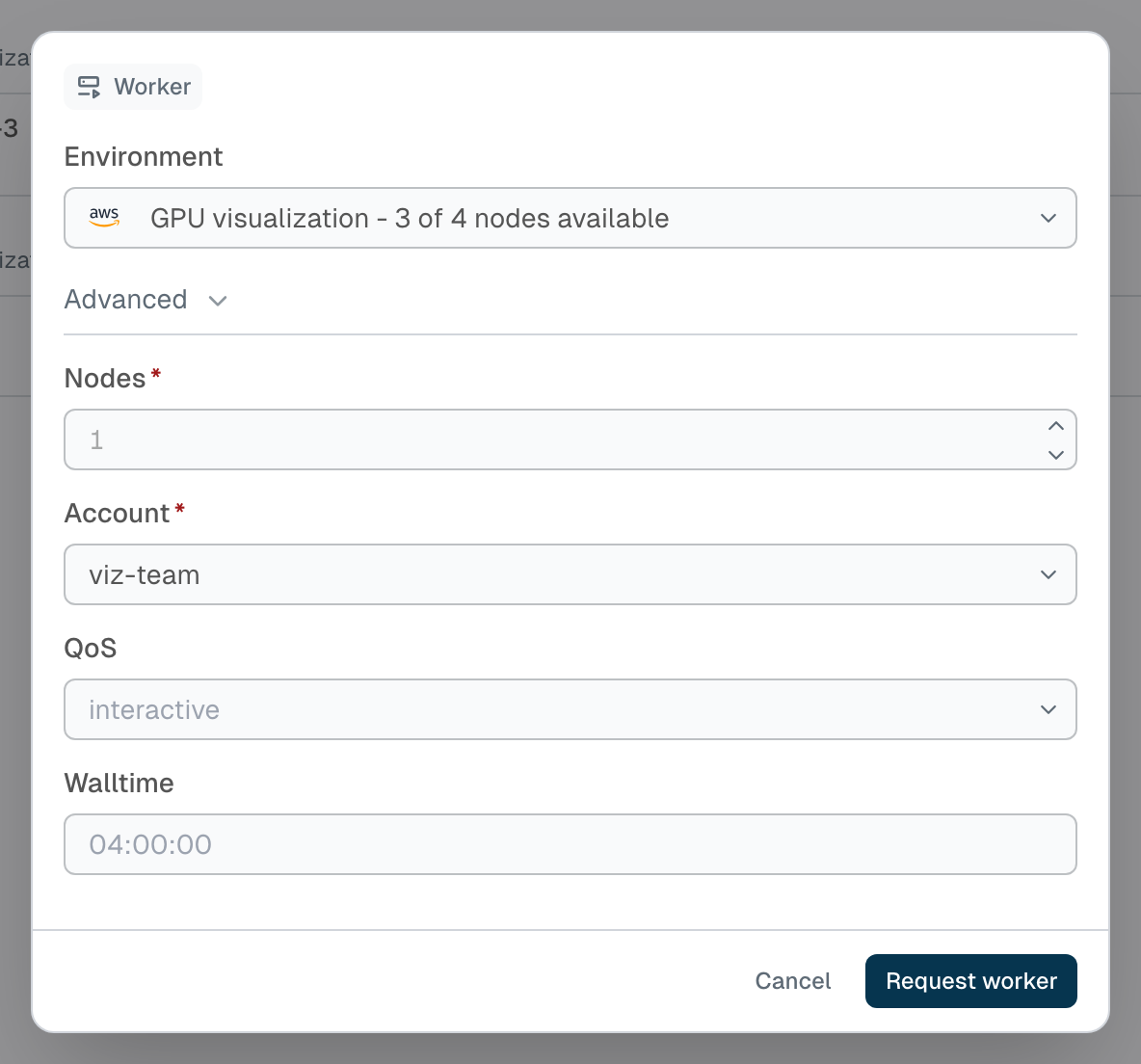
Go to Run → Workers and click Create.

-
Choose an Environment. Environments are grouped by cluster and show how many nodes are available.
-
(Optional) Expand Advanced to set scheduling fields such as Wall Time, Account, QoS, or Scheduler directives. Required fields without a default are shown automatically.
-
Click Request worker.
The worker appears on the Workers page and moves through pending and queued to connected.
Using a worker
-
Terminal: on a connected worker's row, click Open in terminal, or copy the SSH command (
pw ssh …) to connect from your own computer.
-
Sessions: when launching a desktop or VS Code session, pick the worker. In the Sessions page Target list, connected workers appear under their cluster as name (connected); in Quick Launch, choose Run on existing worker.
A session's details show its Scheduling information: Environment, Partition, Node hostname, Scheduler job ID, Worker, and Status.
Delete a worker
On the worker's row, click Delete worker and confirm. ACTIVATE cancels the scheduler job and deletes every session running on the worker.
Workers use your allocation
A connected worker holds its node until you delete it or its wall time runs out, even when nothing is running on it. Delete workers you're done with.
Timeouts
- A worker still
pendingafter 2 hours fails with Timed out waiting for worker to connect. - A worker still
queuedafter 7 days fails with Timed out waiting in the scheduler queue. - If a connected worker stops responding for about 2 minutes, it's marked
stoppedand its sessions fail with Worker disconnected. - When the job ends on the scheduler (for example, wall time reached), the worker shows the job's final state, such as Job TIMEOUT with exit code …, and its sessions end.
Stopped and failed workers are removed from the list after about an hour.
From the command line
pw workers create my-cluster --environment compute --param walltime=04:00:00 --wait
pw workers ls
pw sessions create --type desktop my-cluster --worker <worker-id> --open
pw workers delete <worker-id>
See pw workers for all commands.