# Running Workflows
> Source: https://parallelworks.com/docs/run/workflows/running-workflows
# Running Workflows
:::info About Jobs
There are two ways you can submit jobs to a cluster: by using workflows or through any terminal or command-line interface. For the command-line interface option, please see [**Submitting Jobs via Slurm**](/docs/compute/submitting-jobs).
:::
After you’ve started a cluster, navigate to the **Workflows** page and select the workflow you’d like to use. If you haven’t added any workflows, you can select one from the Marketplace.
When you click the name of your workflow, you'll be taken to the workflow's **Jobs** page. Click the **Run Workflow** tab.
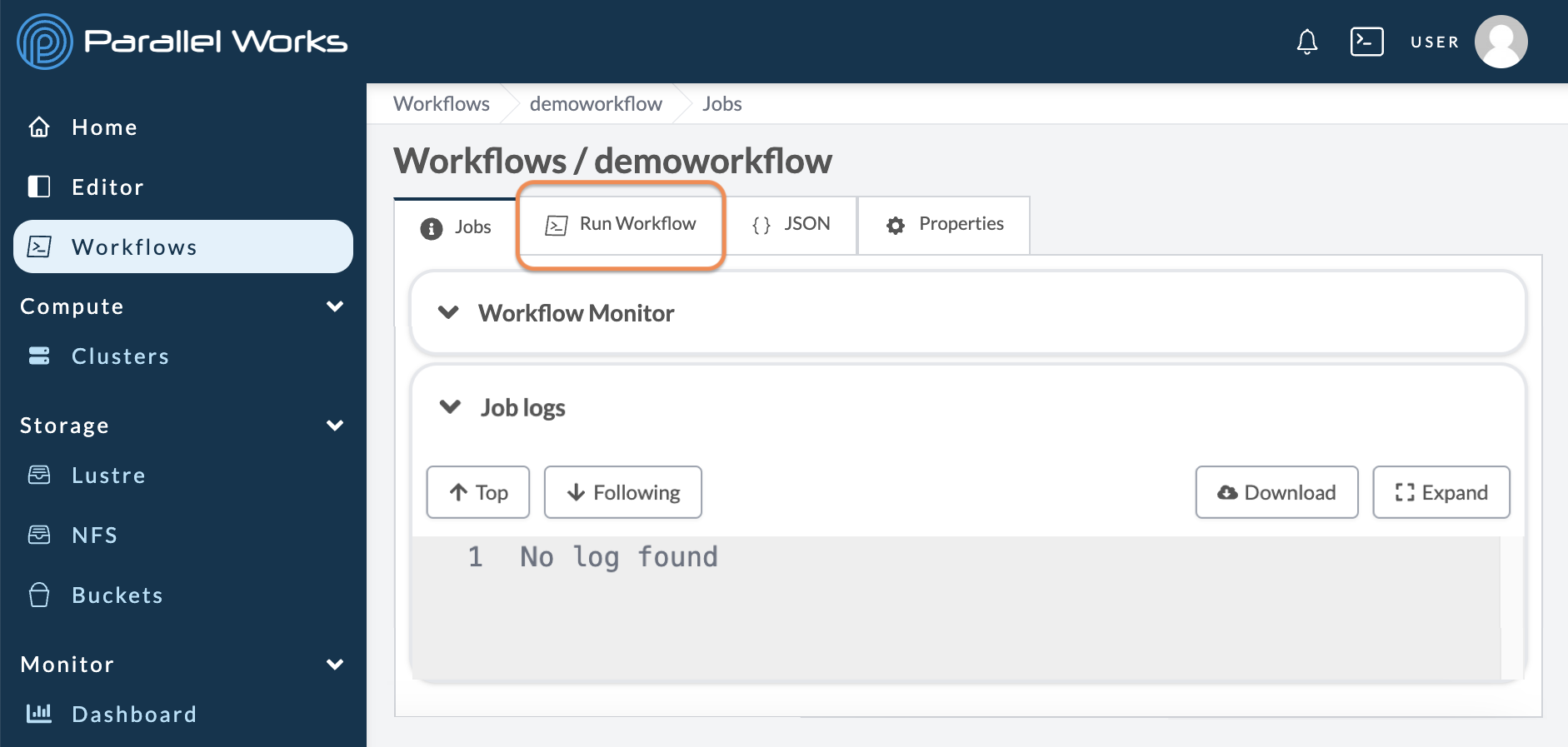
The **Run Workflow** tab is where you enter the inputs used in the workflow.
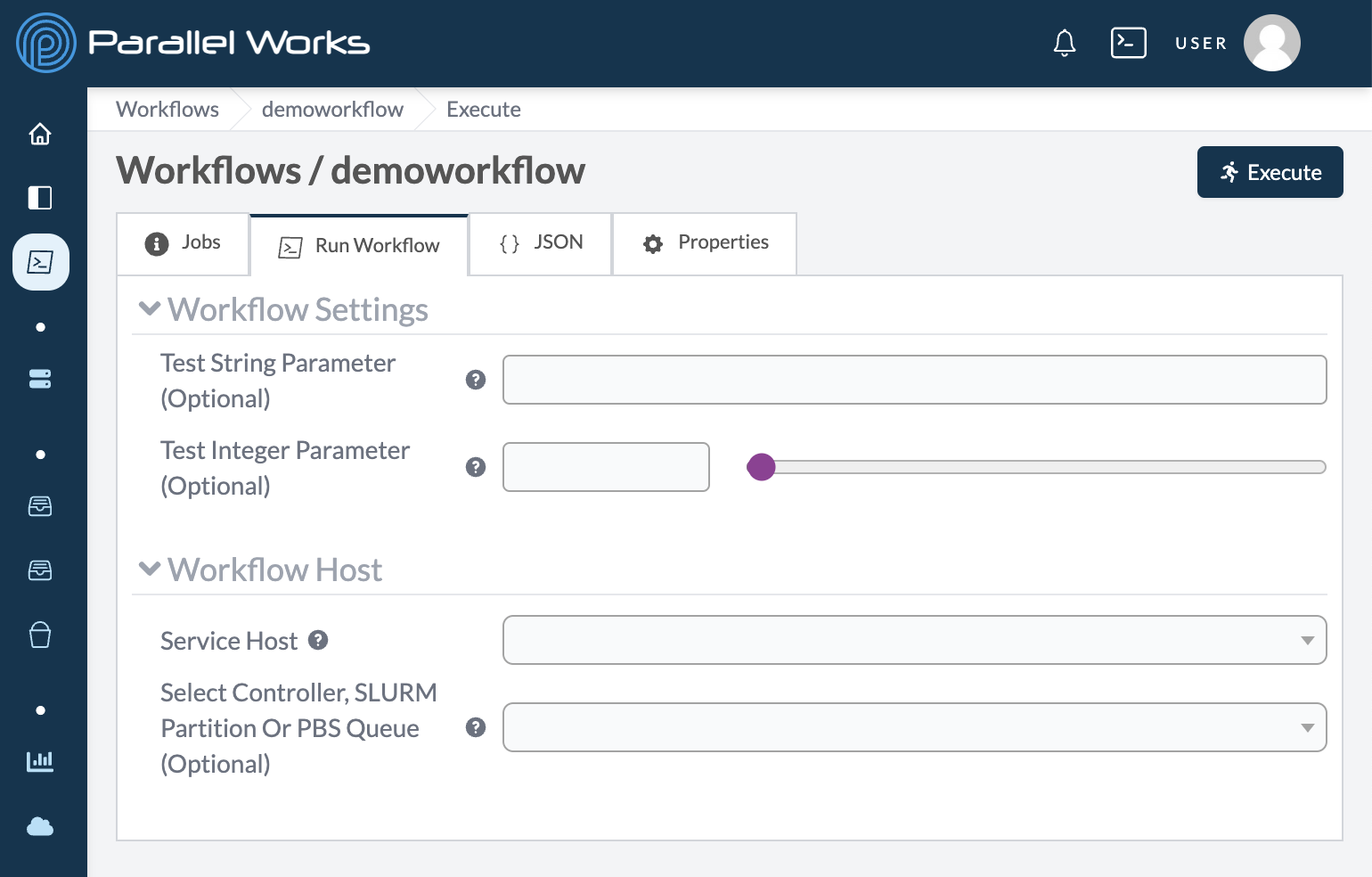
In the **Workflow Settings** section, enter any necessary parameters. The example workflow pictured has only two test parameters, but your selected workflow may have more or fewer options.
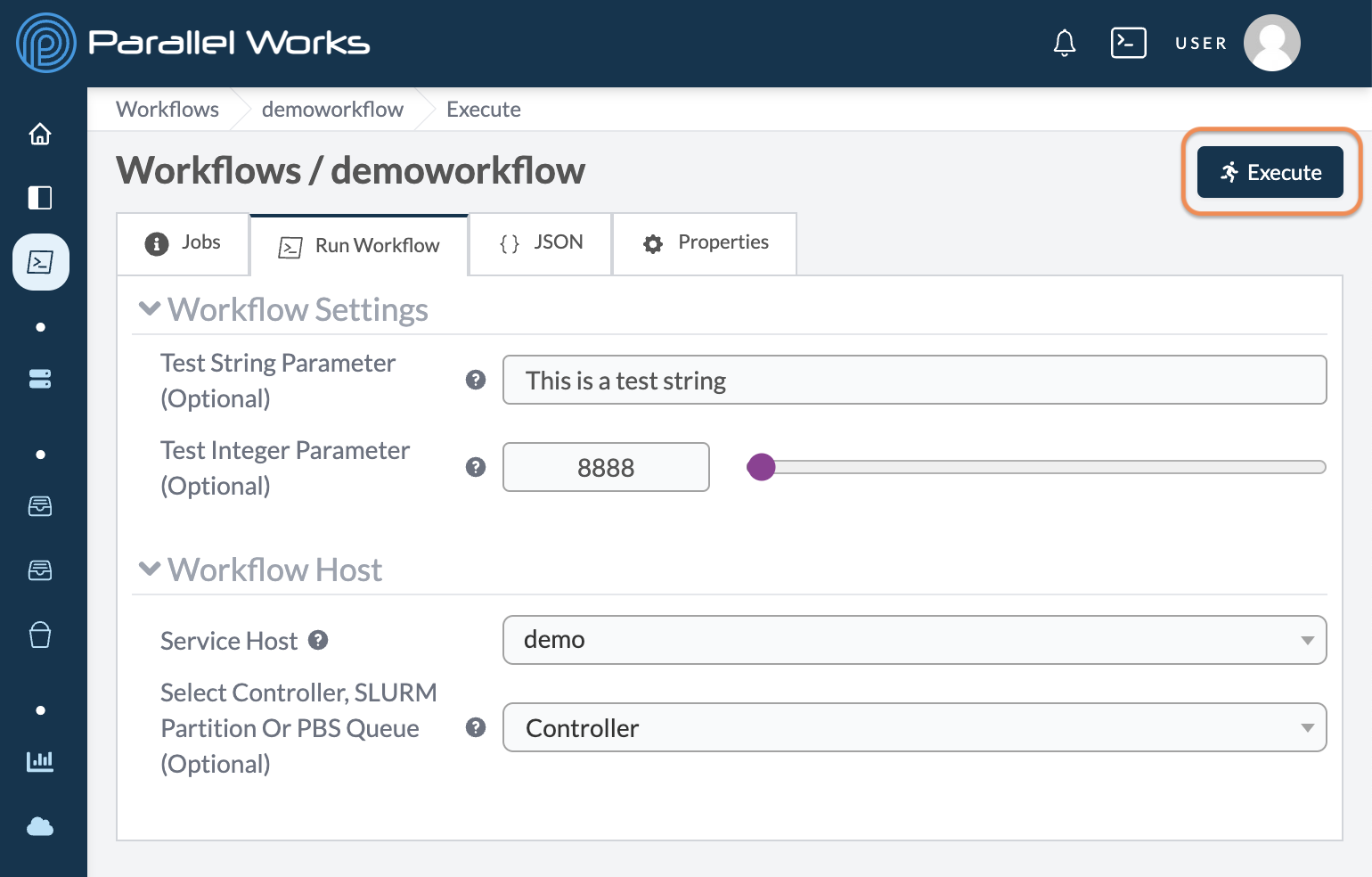
In the **Workflow Host** section, select your running resource and how the job will be submitted. In this example, we ran our workflow on the resource **Demo**. We submitted the job to Demo's **controller** because we used a small workflow. You might submit your job to a partition, Slurm, or PBS, depending on your resource's configuration and your workflow's needs.
Click **Execute**.
You’ll be taken back to the workflow's **Jobs** tab, where you can monitor your workflow's progress.
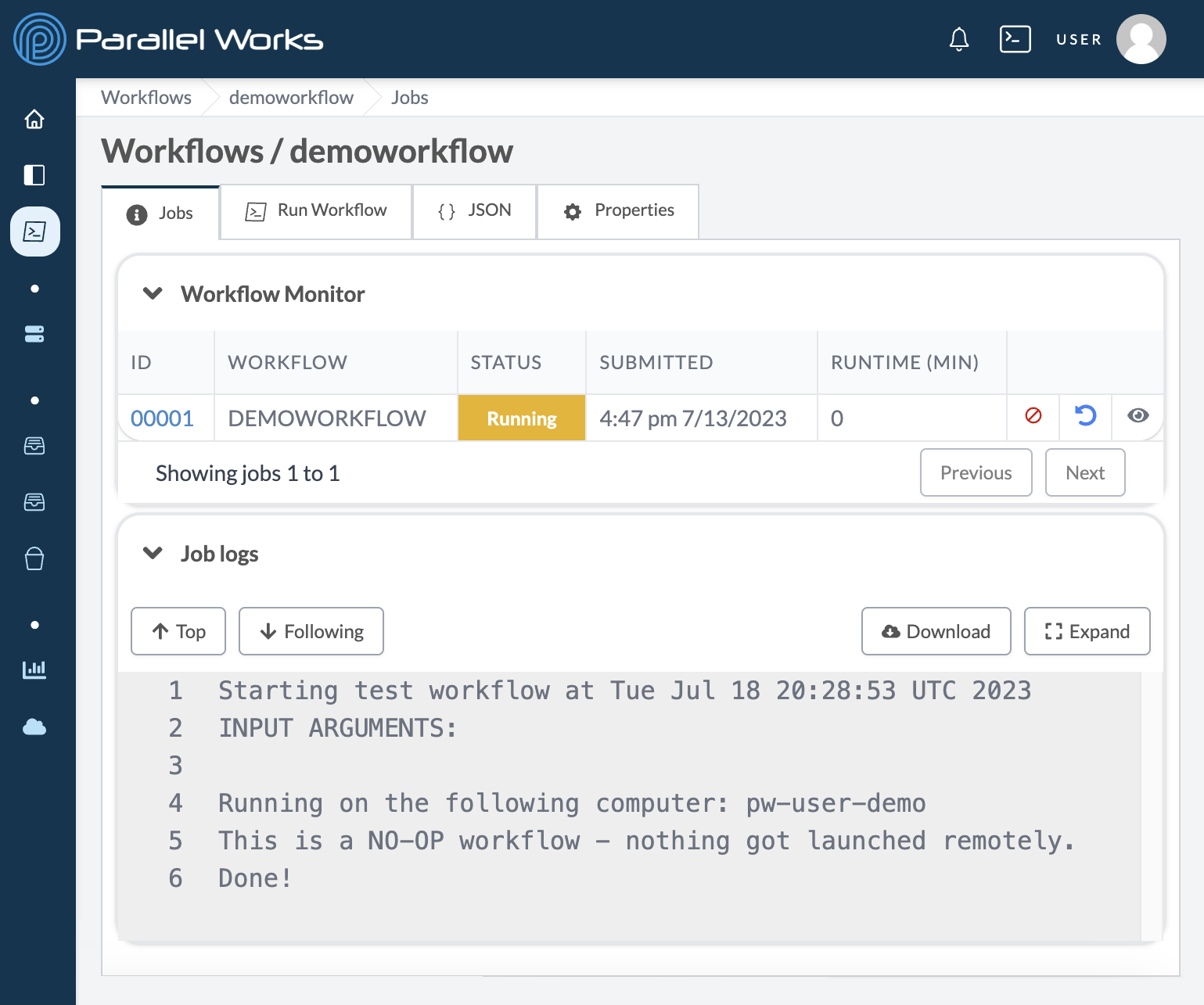
The **Workflow Monitor** shows your workflow's status. In this example, the monitor shows **Completed** with a **Runtime** of 0 because the demo workflow ran in less than a second, bypassing the **Running** status. Workflows that create larger or more complex jobs will show **Running** for longer periods of time before showing **Completed**.
The **Job logs** module shows your job's output as well as details about your workflow's session.
In this example, we ran a simple `bash` script that returns the running resource's hostname, so **Job logs** displayed the following output:
```bash
Starting test workflow at Wed Jan 25 17:12:21 UTC 2023
INPUT ARGUMENTS:
Running on the following computer: pw-user-demo
This is a NO-OP workflow - nothing got launched remotely.
Done!
```
In addition to your workflow's output, logs also include start times and messages for job submissions, job completions, and job errors if any occur.
If you have the **Workflow Monitor** widget on your **Dashboard**, it will also reflect your job's status.
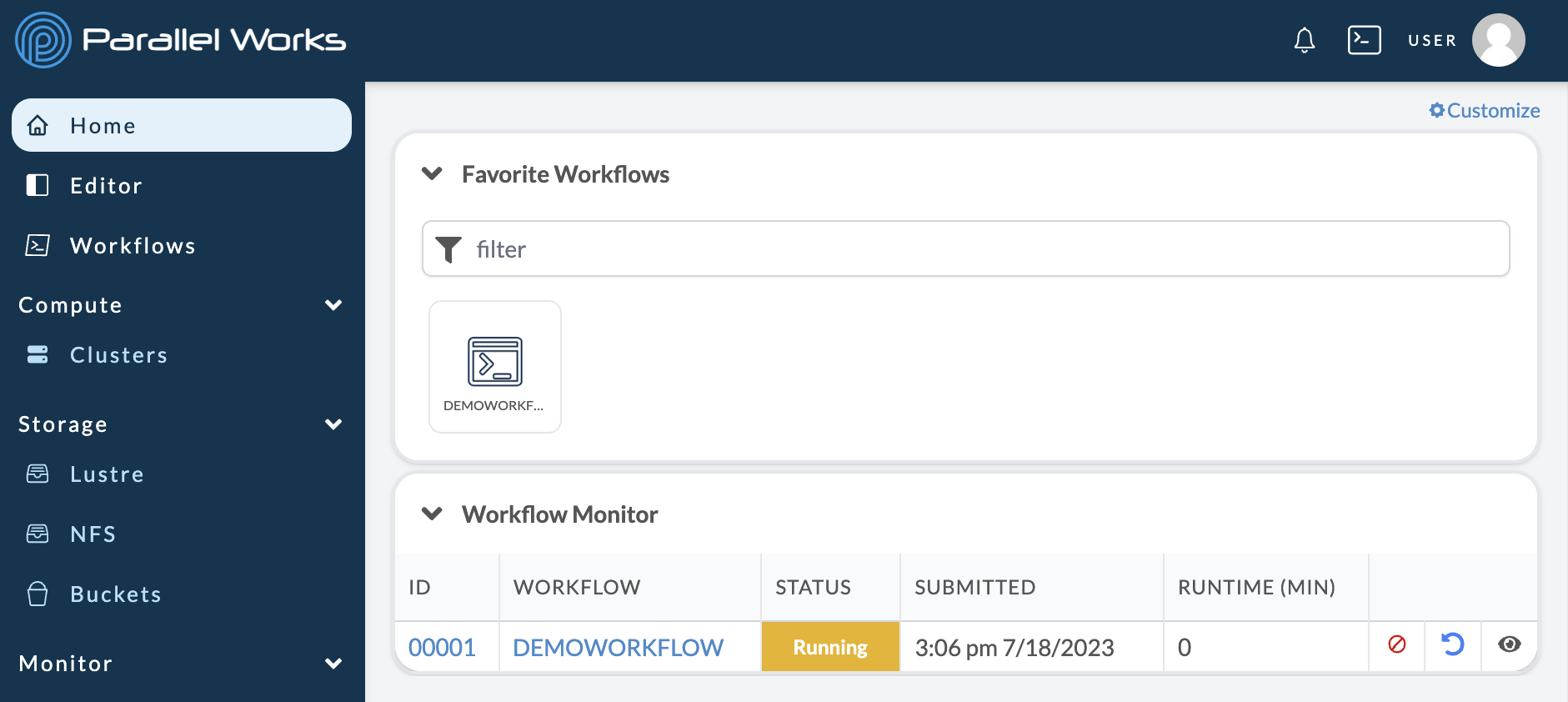
From the **Workflow Monitor**, you can click a workflow's **ID** number to return to its **Jobs** tab.
:::info About Workflow Parameters
The example workflow used here has only two parameters meant for testing purposes. Many workflows on ACTIVATE have additional parameters, especially those that execute multiple or more complex tasks. If you need help with setting parameters, you can reach out to your admin or to us at any time.
:::