# Yaml Fields
> Source: https://parallelworks.com/docs/run/workflows/building-workflows/yaml-fields
See the [building workflows](/docs/run/workflows/building-workflows) page if you have not already. If you are looking for the documentation for a specific field, find the name of the field from the sidebar on the right. This page documents all of the schema fields of the workflow yaml, with the exception of input fields (under `on.execute.inputs`) which can be found [here](/docs/run/workflows/building-workflows/inputs-and-expressions#inputs).
## `jobs`
The most essential part of the YAML configuration is `jobs` , which defines the jobs this workflow will run. Each job must define a list of steps to be executed using the `steps` field. By default, all jobs run in parallel. If a job needs to depend on the completion of another job, it can be specified using the `needs` field. You must have at least one job containing at least a single step for a workflow to be valid. Job names must be unique within a workflow.
`jobs` take the following shape in the YAML file:
```yaml
jobs:
job-name:
steps:
- name: Step 1
run: echo step 1
- name: Step 2
run: echo step 2
```
### `jobs..needs`
`needs` defines a list of jobs that must complete before this job can start. If a job fails, all jobs that depend on it will not run.
In the following example, the job `first` will run, and only after it successfully completes will the job `second` run.
```yaml
jobs:
first:
steps:
- run: echo runs first
second:
needs:
- first
steps:
- run: echo runs second
```
### `jobs..steps`
A list of steps to be executed. These are executed in order, and if any step fails, the job will fail. Each step requires either a command to execute using the `run` field, or another workflow to execute by using the `uses` field. All other attributes are optional.
You can define `steps` with the attributes below.
#### `jobs..steps[*].name`
The name of the step.
Step names are useful when viewing a workflow's progress in the **Runs** tab. If a job fails at a certain step, you can quickly identify its name on the **Runs** graph.
If you don’t provide a name, the step's command will be shown instead.
#### `jobs..steps[*].run`
Defines the command to be executed, e.g. `echo hello world`. This cannot be used in conjunction with `uses`. It is possible to combine bash commands into a single step:
```
jobs:
main:
steps:
- run: |
echo part 1
echo part 2
```
#### `jobs..steps[*].uses`
Runs another workflow as a step, e.g. `marketplace/`. This cannot be used in conjunction with `run`. You may also use `workflow/` to use one of your personal workflows. Additionally, when using `marketplace/`, a version may be specified after another slash, like so: `marketplace//`, where version probably looks somethng like `v1.0.0`. If a version is not specificed, the latest version published on the marketplace is used.
`uses` calls an existing workflow either from another workflow or from the Marketplace. To reference another workflow, prefix the workflow name with `workflow/`. To reference a Marketplace workflow, prefix the marketplace workflow slug with `marketplace/`. To reference a workflow published in a GitHub repository, use `github//@[`, where `][` is a branch, tag, or commit SHA.
If the workflow requires inputs to run, use `with` to provide those inputs. The fields defined inside `with` are the same names as defined in the workflow's `inputs` section.
There are also two rules that must be followed when running workflows within workflows:
* A workflow may never call itself, even indirectly through another workflow.
* There is a limit to how deep the workflow call stack can get. Only up to 5 layers of workflows calling workflows are supported.
Attempts to run the workflow will fail immediately if these rules are violated.
The `uses` field is also used to execute [**actions**](/docs/run/workflows/building-workflows/actions).
]
#### `jobs..steps[*].with`
Defines the inputs passed to the workflow defined by `uses`.
If you include `uses` in the YAML file to call a workflow, it may have inputs that must be defined in order to run. In that case, `with` is used to define those inputs. In the example below, we used the inputs from the default YAML configuration.
```yaml
jobs:
job-name:
steps:
- name: Sample Step
uses: marketplace/default-local-workflow
with:
resource: sample-cluster
```
#### [`jobs..steps[*].ssh`](#jobsjobssh)
#### `jobs..steps[*].cleanup`
Defines a cleanup command to be run after step execution finishes, e.g. `rm -rf /tmp/myapp`.
This can be used to delete temporary files, terminate connections, remove credentials, or perform any any other clean up necessary when a job is shutting down. `cleanup` always runs at the end of a job in reverse order of definition. Clean up steps always run regardless of if a job was successful, failed, or was canceled. If a step did not run, it's cleanup step will not run.
For example, if you have a job with three steps that all have `cleanup` attributes, each `cleanup` will add a clean up step to the end of the job and the job will ultimately execute steps in this order:
- step 1 `run`
- step 2 `run`
- step 3 `run`
- step 3 `cleanup`
- step 2 `cleanup`
- step 1 `cleanup`
#### [`jobs..steps[*].if`](#jobsjobif)
#### `jobs..steps[*].retry`
If a step has a certain chance of failure but is necessary for your workflow, using the `retry` field is recommended. `retry` is an object with the following properties:
- `max-retries`: The number of retries before giving up. Defaults to 0 without a retry object, and 10 with a retry object but no max-retries field.
- `interval`: The amount of time to wait between retries. Defaults to 5s.
- `timeout`: The amount of time to wait before giving up on an attempt. Defaults to 30s.
The supported units for `interval` and `timeout` are:
- `n` (nanoseconds)
- `s` (seconds)
- `m` (minutes)
- `h` (hours)
- `d` (days)
#### [`jobs..steps[*].env`](#env)
#### `jobs..steps[*].ignore-errors`
If true, non-zero exit codes will not be counted as failures. By default, this attribute is set to `false`.
#### [`jobs..steps[*].working-directory`](#jobsjobworking-directory)
#### `jobs..steps[*].early-cancel`
Conditions for early cancellation of the step. Right now, only `early-cancel: any-job-failed` is supported, which cancels the step if any job fails before the step finishes running.
#### [`jobs..steps[*].timeout`](#timeout)
### `jobs..ssh`
If you want the workflow to execute commands on a remote host, using the `ssh` field is recommended. `ssh` is an object with the following properties:
- `remoteHost`: The ip address of the remote host.
- `remoteUser`: The username to utilize when attempting to ssh to the remoteHost.
- `jumpNodeHost`: The ip address of the (optional) jump node.
- `jumpNodeUser`: The username to utilize when attempting to ssh to the jump node.
However, you generally will not need to use the `remoteUser` and `jumpNodeUser` fields, as they will be populated automatically. The step-level `ssh` overwrites the job-level `ssh`, and you may also pass `ssh: null` (or just `ssh:` with nothing else) at the step level to execute on the user workspace (the default behavior without ssh set).
**Example**:
```yaml
jobs:
echo_on_remote:
ssh:
remoteHost: ${{ inputs.resource1.ip }}
jumpNodeHost: ${{ inputs.resource2.ip }}
steps:
- run: echo This is executed on the remote host!
- run: echo This is executed on the jump node!
ssh:
remoteHost: ${{ inputs.resource2.ip }}
- run: echo This is executed in the user workspace!
ssh: null
on:
execute:
inputs:
resource1:
label: Resource 1
type: compute-clusters
optional: false
resource2:
label: Resource 2
type: compute-clusters
optional: false
```
### `jobs..if`
`if` prevents a job/step from running unless a conditional evaluates to true.
**Example**:
```yaml
jobs:
main:
steps:
- run: echo hello world
- run: echo This ran because of an input!
if: ${{ inputs.should-run }}
extra:
if: ${{ inputs.should-run }}
steps:
- run: echo This ran because of an input!
on:
execute:
inputs:
should-run:
type: boolean
label: Run extra step + job?
```
In the above example, the second step and second job will only run if the user selects **Yes** on "Run extra step + job?".
The `if` field also accepts `${{ always }}`, which for jobs ensures that it runs even when one of its dependencies failed, and for steps ensures that it runs even when a previous step in the job failed. Unlike `cleanup`, steps with `if: ${{ always }}` can be cancelled and are run in order rather than in reverse order. So in this example:
```yaml
jobs:
main:
steps:
- run: fail
cleanup: echo fifth
- run: echo first
if: ${{ always }}
cleanup: echo fourth
- run: echo second
if: ${{ always }}
cleanup: echo third
```
The commands will be executed in this order:
- `fail`
- `echo first`
- `echo second`
- `echo third`
- `echo fourth`
- `echo fifth`
### [`jobs..env`](#env)
### `jobs..working-directory`
Defining this field changes the directory that `run` commands are run in from the default, which is the job directory (~/pw/jobs/workflow-name/job-number/). If the path does not exist before the command is run, it will be created. Step-level `working-directory` overwrites job-level.
### [`jobs..timeout`](#timeout)
### `jobs..strategy`
Runs a job multiple times across a set of variable combinations (a "matrix"). Each combination produces an independent run of the job that can be referenced by matrix keys in expressions.
`strategy.matrix` defines the variables. Each top-level key is a variable name mapped to an array of values. The job runs once for every combination of all variables.
```yaml
jobs:
test:
strategy:
matrix:
os: [ubuntu, centos]
version: [1, 2, 3]
steps:
- run: echo ${{ matrix.os }} v${{ matrix.version }}
```
The example above runs the job six times: `ubuntu v1`, `ubuntu v2`, `ubuntu v3`, `centos v1`, `centos v2`, `centos v3`.
`strategy.matrix.include` adds extra combinations (or augments existing ones with extra fields):
```yaml
strategy:
matrix:
os: [ubuntu, centos]
version: [1, 2]
include:
- os: ubuntu
version: 2
experimental: true
- os: fedora
version: 3
```
`strategy.matrix.exclude` removes combinations:
```yaml
strategy:
matrix:
os: [ubuntu, centos]
version: [1, 2, 3]
exclude:
- os: centos
version: 1
```
`strategy.fail-fast` (default `true`) cancels all still-running matrix jobs the moment one fails. Set to `false` to let every combination finish regardless.
`strategy.max-parallel` caps how many matrix jobs run concurrently. If not set, all combinations run in parallel.
```yaml
strategy:
fail-fast: false
max-parallel: 2
matrix:
region: [us-east-1, us-west-2, eu-west-1]
```
## `sessions`
This field is used to define the sessions that will be used when running the workflow. For an example usage, see [Building Sessions](/docs/run/sessions/building-sessions).
### `sessions..type`
What type of session to create (tunnel by default). The only possible options are tunnel and link.
### `sessions..openAI`
If true, will mark the session as providing an OpenAI API, and connect it to the built-in chat interface.
### `sessions..prompt-for-name`
If `prompt-for-name` is `null`, the user will be prompted to name the session before workflow execution. If `prompt-for-name.default` is defined, the passed default will be used.
### `sessions..redirect`
If true, the user will be redirected to this session once the workflow is executed. Only one session is allowed to have this set to true.
### `sessions..useTLS`
If true, will use HTTPS to connect to the session. This should only be enabled if the application requires it.
### `sessions..useCustomDomain`
If true, will use a custom domain to connect to the session. This should only be enabled if the application requires it.
### `sessions..detach`
If true, the session will persist after the workflow run reaches a terminal status (completed, error, canceled) and will only be removed when the user manually deletes it. Defaults to `false`.
## `permissions`
Workflow runs can be granted additional access via `permissions`. Adding the `*` permission will allow the workflow to do anything a user would be able to. Without the `*` permission the workflow will only be able to update any sessions it creates.
```yaml
permissions: ["*"]
jobs:
main:
steps:
- name: Print buckets
run: pw buckets ls
```
Without the permission, `pw buckets ls` would not allow the workflow to see all of the buckets.
## `configurations`
Configurations are saved inputs that can be used when running a workflow, as opposed to manually filling out the form, to save time and ensure consistency. Configurations can be saved by users of a workflow, but can also be defined in the workflow yaml file. Here is a basic example of a definition in yaml:
```yaml
configurations:
config_1:
inputs:
input_1: hello!
jobs:
echo:
steps:
- run: echo ${{ inputs.input_1 }}
'on':
execute:
inputs:
input_1:
type: string
```
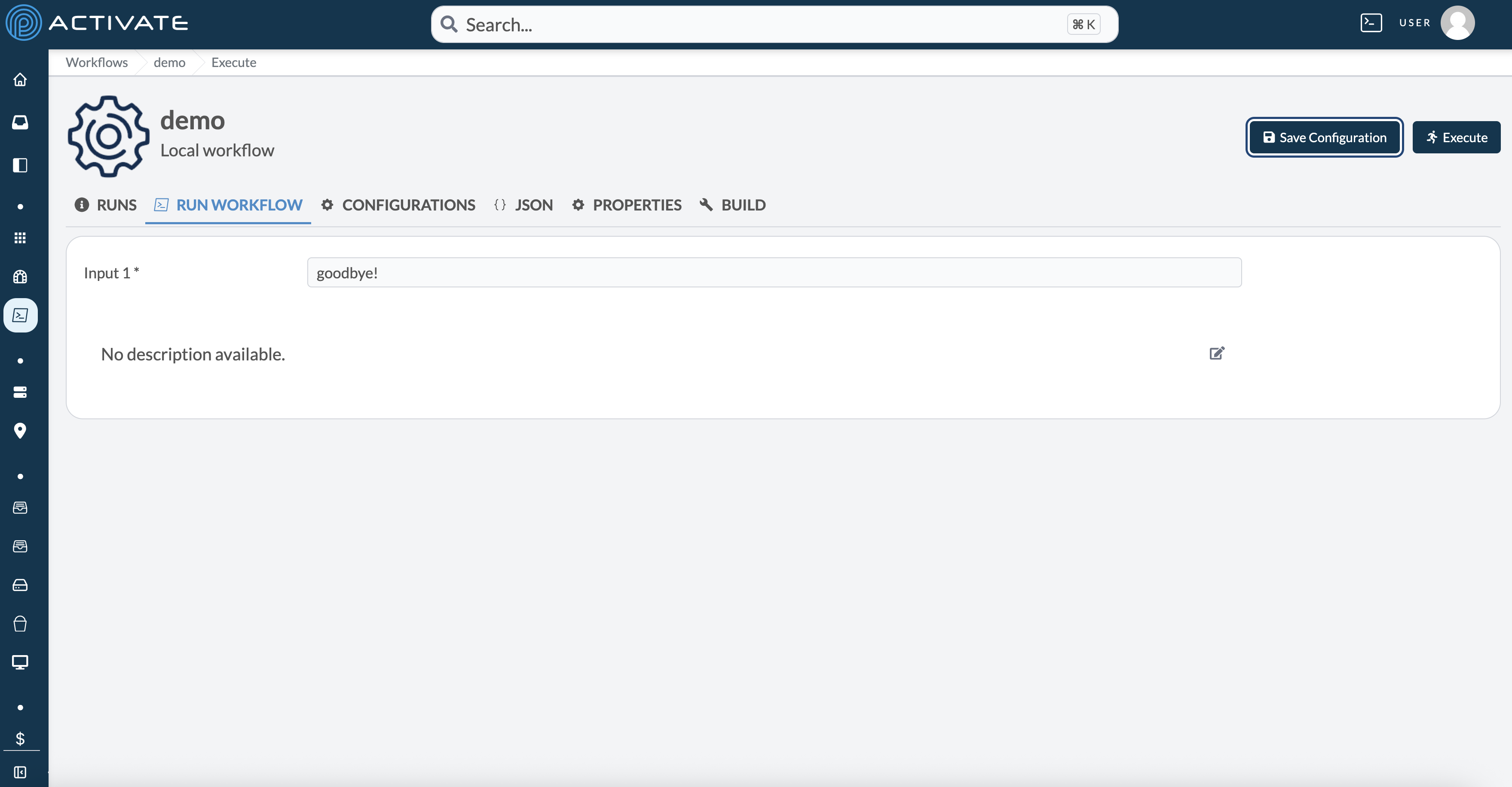
You can save a config for personal use by pressing the **Save Config** button after filling out the workflow form with the inputs you wish to save. In the example below, we save with `input_1 = "goodbye!"`:
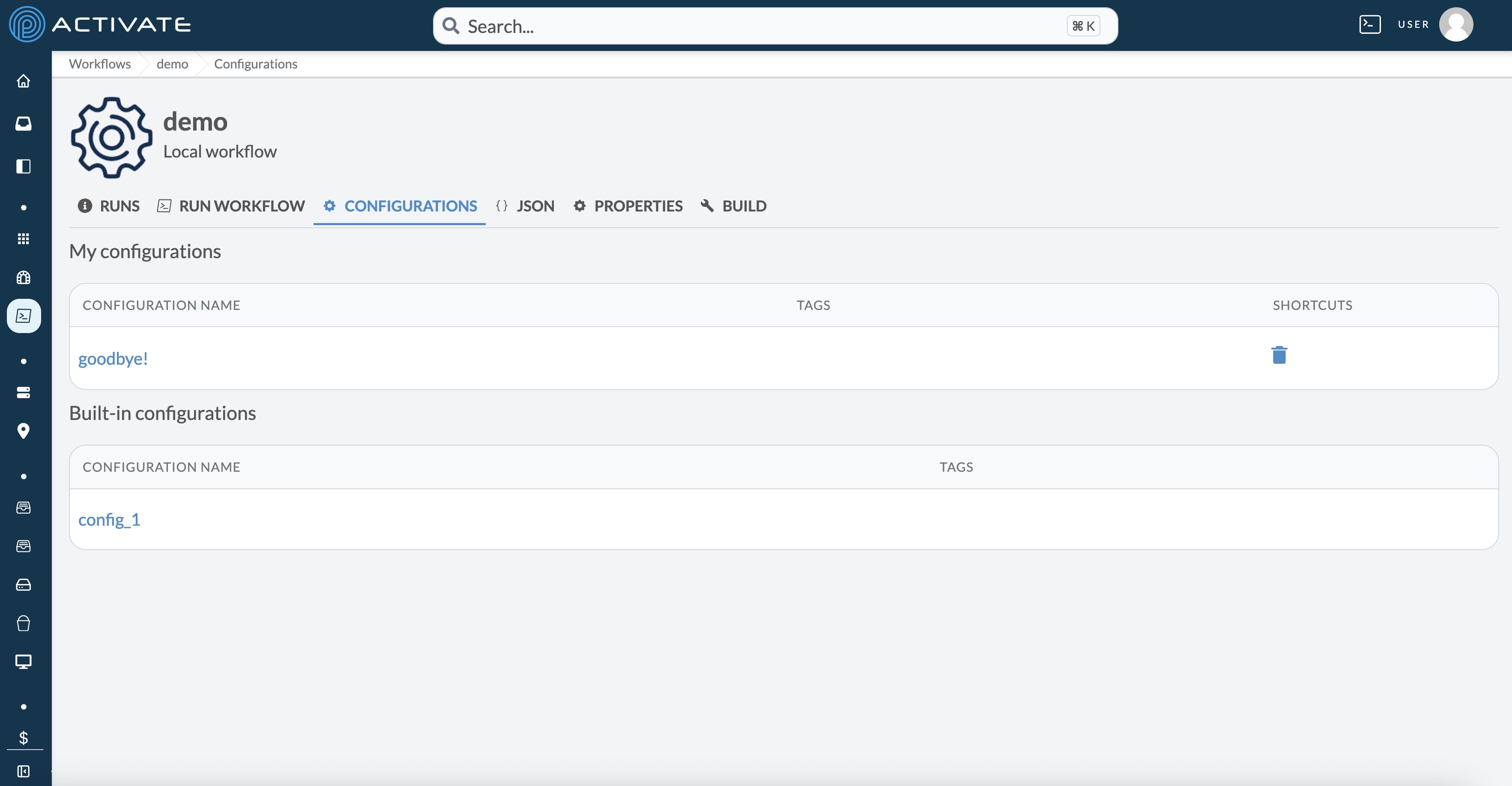
Both built-in and personal configurations can be viewed in the configuration tab:
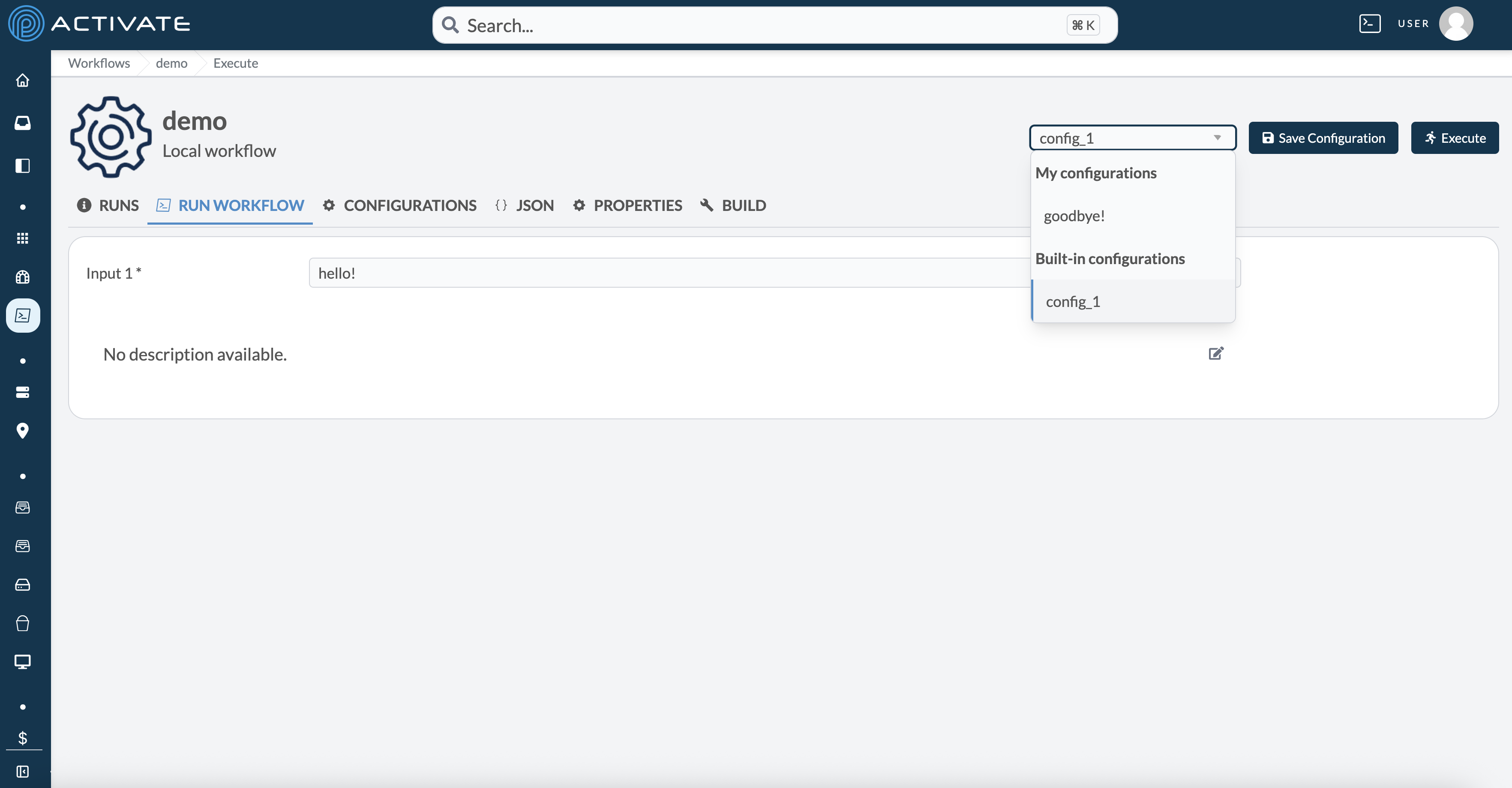
If you wish to execute using a configuration, you can select a configuration from the dropdown in the top right on the **Run Workflow** tab, which will fill the inputs with the saved configuration values, then press **Execute** as usual.
## `env`
Defines environment variables to be set. Note that variables set at the step level overwrite job level env variables, which overwrite global env variables.
**Example**:
```yaml
env:
foo: a
jobs:
job-name:
env:
foo: b
steps:
- name: Print an environment variable
run: echo $foo
env:
foo: c
```
The above example will print `c`.
## `timeout`
Defines a maximum amount of time for a workflow/job/step to run.
Supported units are:
- `n` (nanoseconds)
- `s` (seconds)
- `m` (minutes)
- `h` (hours)
- `d` (days)
**Example**:
```yaml
timeout: 1d
jobs:
main:
timeout: 1m
steps:
- name: Sample Step
run: sleep 30
timeout: 10s
```
In the example above, the sleep command finishes after 1 minute. We set the step `timeout` attribute to 10 seconds. Since the step has not completed in 10 seconds, the job will fail. Without a `timeout` value, the step will run until it finishes. Note that timeouts at all levels are applied rather than overwritten, so if the job timeout was `5s`, the command would be cancelled after 5 seconds instead of 10.
## `needs`
Declares workflow-level requirements that must be satisfied before the workflow can run.
`needs.organizationVariables` is an array of organization variable names that must be set by an org admin. If any are missing, the workflow will refuse to execute and the user will see which variables still need to be configured.
```yaml
needs:
organizationVariables:
- AWS_REGION
- LICENSE_KEY
```
## `on`
Use the `on` field to define the event that triggers the workflow. In a future release, the `on` field will support additional events. At this time, workflows only support the `execute` event, which is triggered when the workflow is manually executed via the UI or the REST API. When the workflow is manually triggered, the `inputs` context is populated with values from the input form.
### [`on.execute.inputs`](/docs/run/workflows/building-workflows/inputs-and-expressions#inputs)