# Inputs & Expressions
> Source: https://parallelworks.com/docs/run/workflows/building-workflows/inputs-and-expressions
See the [building workflows](/docs/run/workflows/building-workflows) page if you have not already. If you are looking for the documentation for a specific input field, find the name of the field from the sidebar on the right. Expression documentation can be found [here](#expressions).
## Inputs
In addition to defining what your workflow does with jobs, you can define the workflow form users will fill out when running the workflow. This form is what's displayed in the **Run Workflow** tab, and the values of the inputs can be accessed from inside jobs using expressions. Inputs are defined in the following structure:
```yaml
on:
execute:
inputs:
name_of_input_1:
type: type_of_input_1
... other fields (potentially type specific) ...
name-of-input-2:
type: type_of_input_2
... other fields (potentially type specific) ...
```
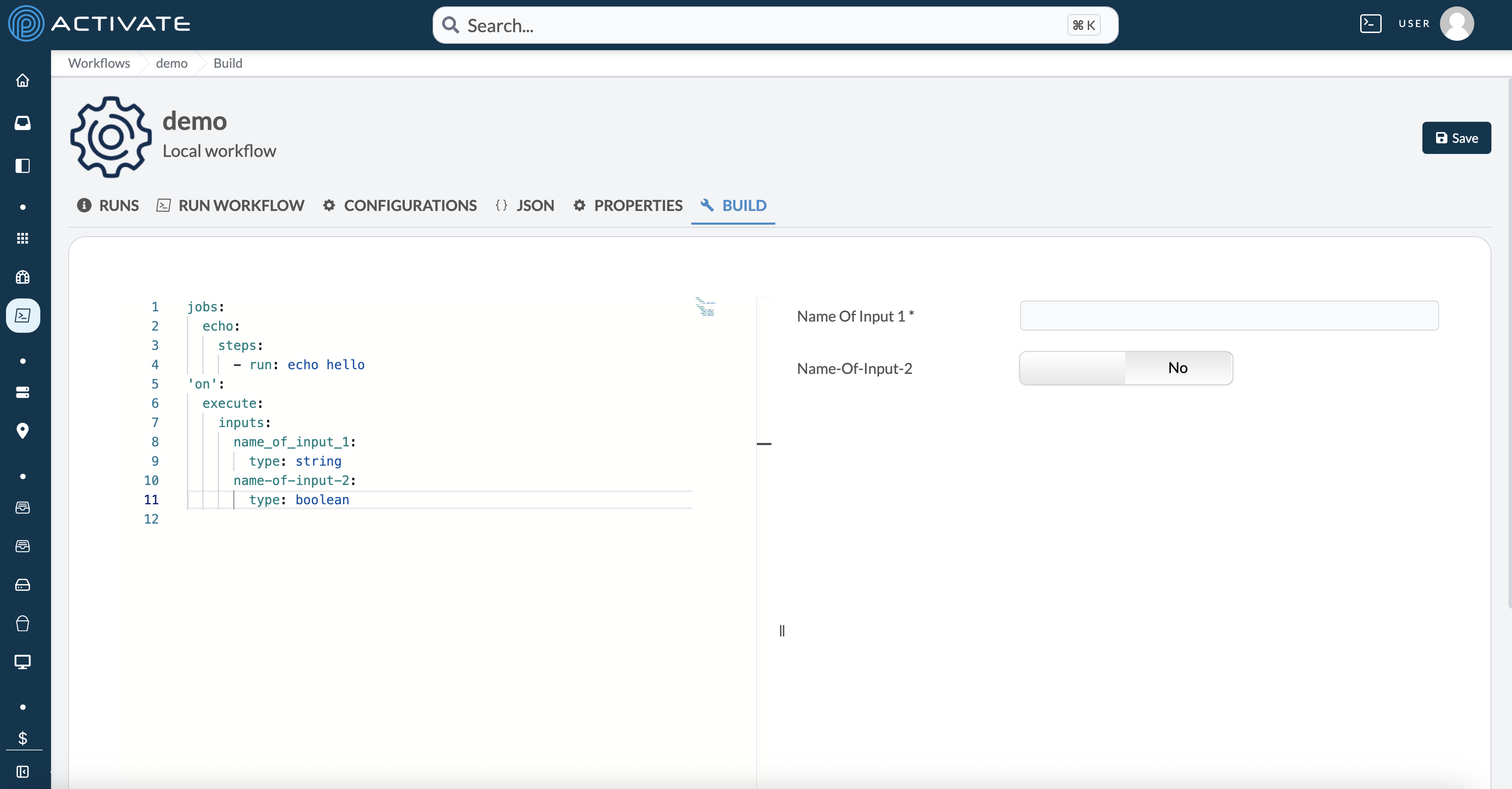
The name of an input must be composed of alphanumeric characters, dashes, and underscores. When defining the YAML file in the **Build tab**, the form is previewed on the right side of the screen:
### Input Types
Below is a list of each `type` and its modifying attributes. Unless otherwise noted, each `type` can be modified by any of the [universal attributes](#universal-input-attributes).
#### boolean
A checkbox or toggle switch representing a boolean value (true/false).
Useful for optional settings, enabling/disabling features, or making binary choices (such as "Enable logging?").
#### bucket
A dropdown selector for cloud storage buckets (S3, GCS, Azure Blob). Displays the user's own buckets and any buckets shared with them. Only provisioned buckets can be selected.
**Attributes**:
- `csp`: Filters the list to a specific cloud service provider. Options are `aws`, `azure`, `google`, and `openstack`. When omitted, buckets from all providers are shown.
- `generateCredentials`: When set to `true`, the platform generates temporary cloud credentials for the selected bucket and includes them in the input value at runtime. See [Bucket credentials](#bucket-credentials) below for details.
Allows users to select a bucket to use during workflow execution, such as for reading input data or writing results.
##### Bucket value at runtime {#bucket-runtime-value}
When a user selects a bucket, the input value is an object (not a plain string). The following fields are always present:
| Field | Description | Example |
| -------- | -------------------------------------------------- | ------------------------ |
| `type` | Always `"bucket"`. | `"bucket"` |
| `csp` | Cloud service provider of the bucket. | `"aws"`, `"google"`, `"azure"`, `"openstack"` |
| `id` | Internal ID of the bucket resource. | `"66342baec24f12..."` |
| `name` | Name of the bucket resource on the platform. | `"my-bucket"` |
| `user` | Username of the bucket owner. | `"jdoe"` |
| `uri` | Platform URI for the bucket. | `"pw://jdoe/my-bucket"` |
You can access individual fields using dot notation in expressions. For example, `${{ inputs.mybucket.uri }}` returns the platform URI and `${{ inputs.mybucket.csp }}` returns the cloud provider.
##### Bucket credentials {#bucket-credentials}
When `generateCredentials: true` is set on a bucket input, the platform fetches temporary credentials from the vault for the selected bucket and adds them to the input value before the workflow runs. The following additional fields are added:
| Field | Description |
| ------------ | ----------------------------------------------- |
| `bucketName` | The actual cloud bucket name (e.g. the S3 bucket name). |
| `region` | The cloud region of the bucket. |
| `credentials`| An object containing CSP-specific credentials. |
The shape of the `credentials` object depends on the cloud provider:
**AWS** (`csp: "aws"`):
| Credential Field | Description |
| ------------------------------------ | ----------------------------------- |
| `credentials.accessKeyId` | AWS access key ID. |
| `credentials.secretAccessKey` | AWS secret access key. |
| `credentials.sessionToken` | AWS session token (temporary). |
**Azure** (`csp: "azure"`):
| Credential Field | Description |
| ------------------------------------ | ----------------------------------- |
| `credentials.subscriptionId` | Azure subscription ID. |
| `credentials.tenantId` | Azure tenant ID. |
| `credentials.clientId` | Azure client/application ID. |
| `credentials.clientSecret` | Azure client secret. |
**Google Cloud** (`csp: "google"`):
| Credential Field | Description |
| ------------------------------------ | ----------------------------------- |
| `credentials.projectId` | Google Cloud project ID. |
| `credentials.oauth2Token` | OAuth2 access token. |
**Example** — defining a bucket input with credentials and using them in a job:
```yaml
on:
execute:
inputs:
data_bucket:
type: bucket
label: Data Bucket
csp: aws
generateCredentials: true
jobs:
sync:
steps:
- name: Sync data from bucket
run: |
aws s3 sync s3://${{ inputs.data_bucket.bucketName }}/data ./local-data --region ${{ inputs.data_bucket.region }}
```
:::info Bucket Access
The user running the workflow must own the selected bucket or have shared access to it. If the user does not have access, the workflow run will fail with an error.
:::
#### color-picker
An input field that allows users to select a color.
Useful for customizing the appearance of visual elements, such as selecting colors for charts, backgrounds, or UI components.
#### compute-clusters
Represents a selection of compute clusters.
**Attributes**:
- `csp`: Specifies the CSP (cloud service provider). Options are `aws`, `azure`, `google`, and `openstack`.
- `include-workspace`: Indicates whether to include workspace clusters.
- `provider`: Specifies the compute resource provider.
Allows users to select the specific compute cluster where their job will run, essential for distributing workloads across available resources.
#### dropdown
A dropdown menu allowing the user to select from a list of predefined options.
**Attributes**:
- `options`: Either a flat array of options (each with `label` and `value`), or — for *dynamic dropdowns* — an object whose keys are selectable sets of options keyed by another input's value.
- `option-key`: Only used with the dynamic form. An expression (e.g. `${{ inputs.scheduler }}`) whose resolved value selects which entry from the `options` object to render. When the referenced input changes, the dropdown's choices re-render to match.
**Dynamic example**: the second dropdown's options depend on which scheduler was picked above it.
```yaml
scheduler:
type: dropdown
options:
- label: SLURM
value: slurm
- label: PBS
value: pbs
partition:
type: dropdown
option-key: ${{ inputs.scheduler }}
options:
slurm:
- label: gpu
value: gpu
- label: cpu
value: cpu
pbs:
- label: workq
value: workq
```
Ideal for selecting from multiple predefined options, such as job schedulers, input methods, or configuration settings.
#### editor
A code editor input field with syntax highlighting.
**Attributes**:
- `language`: Specifies the language for syntax highlighting (such as yaml, json, etc.).
Useful for entering and editing code snippets, configuration files, or scripts directly within the workflow.
#### group
A collapsible group of related input fields.
**Attributes**:
- `items`: A list of inputs that belong to this group.
- `collapsed`: Boolean to indicate if the group should be initially collapsed.
Organizes related inputs together. Especially useful for advanced settings or additional information that can be optionally expanded by the user.
#### header
Creates a header in the input form.
**Attributes**:
- `text`: The header text.
- `bold`: Indicates if the text should be bold.
- `size`: Font size of the header.
Adds titles or section headers in the input form for better organization and readability.
#### instance-type
Represents a selection of instance types for a specific CSP (cloud service provider) and region.
**Attributes**:
- `csp`: Specifies the CSP (`aws`, `azure`, `google`, or `openstack`).
- `region`: The region associated with the instance types.
Allows users to choose specific instance types for their compute tasks. Important for matching job requirements with appropriate resources.
#### kubernetes-clusters
Represents a selection of Kubernetes clusters.
**Attributes**:
- `autoselect`: Controls automatic selection of a cluster.
Allows users to choose a Kubernetes cluster for subsequent resource specifications. Useful when the workflow can operate on any available cluster or when the cluster is determined at runtime.
#### kubernetes-configmaps
Represents a selection of Kubernetes ConfigMaps.
**Attributes**:
- `clusterName`: The name of the Kubernetes cluster containing the ConfigMap.
- `namespace`: The namespace that holds the ConfigMap.
- `autoselect`: Controls automatic selection of a ConfigMap.
Used to inject non‑secret configuration data into pods. Enables dynamic configuration without rebuilding container images.
#### kubernetes-deployments
Represents a selection of Kubernetes Deployments.
**Attributes**:
- `clusterName`: The name of the Kubernetes cluster where the Deployment is defined.
- `namespace`: The namespace that contains the Deployment.
- `autoselect`: Controls automatic selection of a Deployment.
Enables selection of declarative workload specifications for scaling, rolling updates, and version control.
#### kubernetes-namespaces
Represents a selection of Kubernetes namespaces within a specific cluster.
**Attributes**:
- `clusterName`: The name of the Kubernetes cluster that contains the namespace.
- `autoselect`: Controls automatic selection of a namespace.
Enables users to pick a namespace after a cluster has been chosen. Essential for scoping resources such as pods, services, or config maps to a particular namespace.
#### kubernetes-pods
Represents a selection of Kubernetes pods.
**Attributes**:
- `clusterName`: The name of the Kubernetes cluster where the pod resides.
- `namespace`: The namespace that contains the pod.
- `autoselect`: Controls automatic selection of a pod.
Allows users to reference a specific pod for actions like log retrieval, exec, or monitoring. Critical for targeting workloads at the pod level.
#### kubernetes-pvc
Represents a selection of Kubernetes PersistentVolumeClaims (PVCs).
**Attributes**:
- `clusterName`: The name of the Kubernetes cluster containing the PVC.
- `namespace`: The namespace that holds the PVC.
- `autoselect`: Controls automatic selection of a PVC.
Facilitates binding storage resources to workloads. Important for managing data persistence in Kubernetes environments.
#### kubernetes-secrets
Represents a selection of Kubernetes Secrets.
**Attributes**:
- `clusterName`: The name of the Kubernetes cluster where the secret is stored.
- `namespace`: The namespace that contains the secret.
- `autoselect`: Controls automatic selection of a secret.
Provides a way to reference sensitive configuration data (e.g., passwords, tokens) for use in pods or other resources.
#### kubernetes-services
Represents a selection of Kubernetes Services.
**Attributes**:
- `clusterName`: The name of the Kubernetes cluster where the Service exists.
- `namespace`: The namespace that holds the Service.
- `autoselect`: Controls automatic selection of a Service.
Used to expose pods internally or externally, providing stable networking endpoints for applications.
#### kubernetes-statefulsets
Represents a selection of Kubernetes StatefulSets.
**Attributes**:
- `clusterName`: The name of the Kubernetes cluster where the StatefulSet resides.
- `namespace`: The namespace that contains the StatefulSet.
- `autoselect`: Controls automatic selection of a StatefulSet.
Allows users to target stateful workloads that manage stable network identities and persistent storage.
#### kubernetes-workloads
Represents a generic selection of Kubernetes workloads (any resource type that runs pods).
**Attributes**:
- `clusterName`: The name of the Kubernetes cluster containing the workload.
- `namespace`: The namespace that contains the workload.
- `autoselect`: Controls automatic selection of a workload.
Provides a flexible way to reference any pod‑based workload (Deployments, StatefulSets, DaemonSets, etc.) when the exact type is not important for the operation.
#### list
A list of items, typically used for repeating input patterns.
**Attributes**:
- `template`: The template defining the type of items in the list.
- `items-collapsible`: Whether each item should be collapsible.
Useful for inputs where multiple entries of the same type are needed, such as a list of regions, parameters, or configuration items.
#### multi-dropdown
A dropdown menu allowing the user to select multiple options.
**Attributes**:
- `options`: A list of options with `label` and `value`.
Ideal for selecting multiple items from a list, such as tags, categories, or resource groups.
#### number
An input field for entering numerical values.
**Attributes**:
- `min`: The minimum allowable value.
- `max`: The maximum allowable value.
- `step`: The increment step for the number input.
- `slider`: Boolean to indicate if the input should be displayed as a slider.
Useful for specifying numerical parameters, such as counts, thresholds, limits, or any other numeric settings.
#### organization-groups
Represents a selection of organization groups.
**Attributes**:
- `csp`: Specifies the CSP (cloud service provider). Options are `aws`, `azure`, `google`, and `openstack`.
Allows users to select organizational groups for permissions, access control, or grouping related resources.
#### password
Allows users to input a password, conventionally obfuscated.
#### region
Represents a geographic region associated with a CSP.
**Attributes**:
- `csp`: Specifies the CSP (cloud service provider). Options are `aws`, `azure`, `google`, and `openstack`.
Allows users to select a specific geographic region for their resources, essential for optimizing latency, compliance, and availability.
#### slurm-accounts
Represents a selection of SLURM accounts.
**Attributes**:
- `resource`: The compute resource associated with the SLURM accounts.
Allows users to select SLURM accounts for job submissions. Essential for managing resource allocation and accounting in SLURM environments.
#### slurm-partitions
Represents a selection of SLURM partitions.
**Attributes**:
- `resource`: The compute resource associated with the SLURM partitions.
- `account`: Specifies the SLURM account associated with the partitions.
Allows users to select SLURM partitions for job submissions. Essential for organizing and managing job queues in SLURM environments.
#### slurm-qos
Represents a selection of SLURM QoS (Quality of Service) settings.
**Attributes**:
- `account`: Specifies the SLURM account associated with the QoS settings.
- `partition`: Specifies the SLURM partition associated with the QoS settings.
- `resource`: The compute resource associated with the SLURM QoS.
Allows users to select SLURM QoS settings for job submissions. Essential for prioritizing and managing job performance in SLURM environments.
#### string
A single-line text input or a multi-line text area for string values.
**Attributes**:
- `placeholder`: Placeholder text for the input field.
- `textarea`: Indicates if the input should be a text area.
- `prefillDefault`: If `true`, the `default` value is pre-filled into the form field. If `false` (the default for string inputs), the form field starts empty and `default` only applies when the workflow runs without a value.
Collects textual input from users. Suitable for names, descriptions, commands, or any other text-based configuration.
#### zone
Represents a selection of zones within a region for a specific CSP (cloud service provider).
**Attributes**:
- `csp`: Specifies the CSP. Options are `aws`, `azure`, `google`, and `openstack`.
- `region`: Specifies the region associated with the zone.
Allows users to select specific zones for their resources. Important for optimizing resource placement, redundancy, and compliance.
## Universal Input Attributes
Most [input types](#input-types) above can be modified by a set of common attributes, which help in configuring the basic behavior and presentation of the input fields. The only `type` without these universal attributes is `header`, which has its own unique set of attributes focused on display rather than interaction.
#### `default`
Sets the default value for the input field.
**Usage**: Provides an initial value if the user does not input one.
**Example**:
```yaml
default: 'Enter description here'
```
#### `description`
Descriptive text shown beneath the field's label. Unlike `tooltip`, the description is always visible rather than only appearing on hover — use it for guidance the user should read before filling in the field.
**Example**:
```yaml
description: The GPU type to allocate. Changing this restarts the instance.
```
#### `disabled`
Disables the input field, making it read-only and uneditable by the user.
**Usage**: Use this when you want to display information without allowing the user to change it.
**Example**:
```yaml
disabled: true
```
#### `hidden`
A condition to hide or show the input field based on other inputs or logic.
**Usage**: Creates a dynamic form where inputs can be conditionally displayed.
**Example**:
```yaml
hidden: ${{ inputs.show_advanced == false }}
```
#### `ignore`
When set to `true`, the input field's value is ignored and not sent to the backend.
**Usage**: Useful for fields that are needed for UI logic but should not be part of the final payload.
**Example**:
```yaml
ignore: true
```
#### `label`
A human-readable name for the input field that will be displayed in the UI.
**Usage**: Helps users understand what data is expected.
**Example**:
```yaml
label: Job Description
```
#### `optional`
Indicates whether the input field is optional or required.
**Usage**: Determines whether the user must provide a value.
**Example**:
```yaml
optional: true
```
#### `tooltip`
A tooltip text providing additional information about the input field.
**Usage**: Assists users by offering more context or instructions when they hover over the input field.
**Example**:
```yaml
tooltip: 'Provide a detailed description of the job'
```
## Wizard Mode
Wizard mode turns the input form into a multi-step flow. Useful for long forms where grouping related fields into sequential steps reduces cognitive load.
Enable it by setting `$meta.wizard.mode` to `wizard` at the top of your `on.execute.inputs` object, then define each step using input fields of `type: step`.
```yaml
on:
execute:
inputs:
$meta:
wizard:
mode: wizard
step1:
type: step
title: Basic Info
options:
name:
type: string
label: Name
step2:
type: step
title: Resources
description: Pick where this will run
options:
resource:
type: compute-clusters
label: Compute Cluster
```
### Wizard step attributes (`type: step`)
- `title` (required) — Shown as the step heading.
- `description` — Optional subheading.
- `nextLabel` — Custom label for the Next button. Default: `Next →`.
- `prevLabel` — Custom label for the Previous button. Default: `← Previous`.
- `options` — The input fields rendered in this step. Uses the same input schema as top-level inputs.
### Wizard `$meta.wizard` attributes
- `mode` (required) — Must be `wizard` to enable wizard mode.
- `submitLabel` — Label for the final submit button. Default: `Execute`.
- `flatten` — If `true` (default), step fields are merged into the top-level `inputs` context so you can reference them as `${{ inputs.name }}` rather than `${{ inputs.step1.name }}`. Set to `false` to keep the nesting.
- `navigation.showSteps` — Show the step indicator. Default: `true`.
- `navigation.allowJump` — Allow jumping to previously visited steps. Default: `false`.
- `navigation.hideStepNumbers` — Hide numbers in the step indicator. Default: `false`.
### `$meta.labelPosition`
Independent of wizard mode, setting `$meta.labelPosition` to `left` or `top` controls where the input label appears relative to the field. Default is `top`.
## Expressions
Expressions allow workflow authors to programatically control the input form based on other inputs and access contexts inside of jobs.
In order for expressions to be evaluated, they must be wrapped in `${{ }}`.
### Operators
The following operators are available for use in expressions, and generally correspond to their javascript counterparts. Example expressions and what they evaluate to are included.
- `&&`: Logical AND
- `${{ true && 'truthy value' }}` = 'truthy value'
- `${{ 'truthy value' && true }}` = true
- `${{ 0 && true }}` = 0
- `${{ 'truthy value' && false }}` = false
- `||`: Logical OR:
- `${{ false || 'any value' }}` = 'any value'
- `${{ 'truthy value' || 'any value' }}` = 'truthy value'
- `==`: Equal to
- `${{ 1 == true }}` = true
- `!=`: Not equal to
- `${{ 1 != true }}` = false
- `===`: Strict equal to
- `${{ 1 === true }}` = false
- `!==`: Strict not equal to
- `${{ 1 !== true }}` = true
- `>`: Greater than
- `${{ 'a' > 'b' }}` = false
- `<`: Less than
- `${{ 1.5 < 1 }}` = false
- `>=`: Greater than or equal to
- `${{ 1.0 >= 1 }}` = true
- `<=`: Less than or equal to
- `${{ false <= true }}` = true
- `+`: Addition/Concatenation
- `${{ 'a' + 'b' }}` = 'ab'
- `${{ 1 + 1.5 }}` = 2.5
- `-`: Subtraction
- `${{ 1 - 1.5 }}` = -0.5
- `*`: Multiplication
- `${{ 4 * 4 }}` = 16
- `/`: Division
- `${{ 9 / 4 }}` = 2.25
- `**`: Exponentiation
- `${{ 2 ** 4 }}` = 16
- `//`: Floor division
- `${{ 4 // 3 }}` = 1
- `??`: Nullish coalescing
- `${{ 'hello' ?? 'default' }}` = 'hello'
- `${{ undefined ?? 'default' }}` = 'default'
- `get`: Get index/property:
- `${{ ["a", "b"] get 1 }}` = "b"
- `${{ {"a":"c", "b":"d"} get a }}` = "c"
- `${{ 'ab' get 0 }}` = 'a'
- `in`: Left in right:
- `${{ "a" in ["a", "b"] }}` = true
- `${{ "b" in {"a":"c", "b":"d"} }}` = true
- `${{ "d" in {"a":"c", "b":"d"} }}` = false
Special operators (not binary):
- `!`: Logical NOT:
- `${{ !false }}` = true
- `${{ "hello" !in ["hello", "goodbye"] }}` = false
- `( )`: Logical grouping:
- `${{ true && (true || true) && false }}` = false
- `${{ 10 / (2 + 8) }}` = 1
- `? :`: Conditional (ternary):
- `${{ true && false ? 'a' : 'b' }}` = 'b'
- `${{ 'truthy value' ? 'a' : 'b' }}` = 'a'
Parser idiosyncracies to take note of:
- Expressions are very much whitespace sensitive, relying on spaces to separate operators and operands. Thus `${{ 1 + 1 }}` will evaluate to 2 but `${{ 1+1 }}` will evalutate to the string `1+1`. Logical not `!` is the only operator that should not be separated with a space.
- If an expression has even a minor mistake, the parser will never throw an error but may return any value, screwing up your workflow in strange ways. So double check your expressions.
### Contexts
The following contexts are available for use in expressions:
- `inputs`: Used to access the values and schema of the input fields.
- `needs`: For now only `needs..outputs.` is supported, which allows access to outputs from the current job or its dependency jobs.
- `sessions`: Contains a field for each session described in the workflow. For an example, see [Building Sessions](/docs/run/sessions/building-sessions).
- `org`: Contains organization-specific variables that are set by your administrator. Use `org.` in an expression to access these.
- `.` and `../`: Used to access schema values.
The workflow form can only access the values and schema of the inputs field through the `inputs` context and `.` self referencing, alongside your organization variables through `org`. Information from job dependencies accessed through the `needs` context and sessions accessed through the `sessions` context are only available during execution, so they should only ever be accessed inside of `jobs`.
### Outputs
#### Accessing outputs
Outputs from a job can be accessed using the `needs` context. The following example demonstrates how to access the outputs from within the current job:
```yaml
jobs:
job1:
steps:
- name: fake output
run: echo PORT=3001 >> $OUTPUTS
- name: Echo output from self
run: echo ${{ needs.job1.outputs.PORT }} # Prints 3001
job2:
needs:
- job1
steps:
- name: Echo output from job 1
run: echo ${{ needs.job1.outputs.PORT }} # Prints 3001
```
##### Accessing outputs from named steps
Steps can be given an `id` field to create named steps. Outputs from named steps can be accessed using `needs..steps..outputs.`. When using named steps, outputs are not automatically published to the job outputs and must be explicitly mapped to job outputs using the job outputs field.
```yaml
jobs:
main:
steps:
- name: Create step output
id: test
run: echo FOO=BAR >> $OUTPUTS
- name: Access output from named step
run: echo ${{ needs.main.steps.test.outputs.FOO }} # Prints BAR
```
#### Writing outputs
To create outputs that can be accessed by other jobs or steps, you must write key-value pairs to a special output file. The path to this file is provided through the `$OUTPUTS` environment variable.
**Output format**: Each output must be written as `key=value` on a separate line.
**Basic example**:
```yaml
jobs:
example:
steps:
- name: Create outputs
run: |
echo PORT=3001 >> $OUTPUTS
echo DATABASE_URL=postgres://localhost:5432/mydb >> $OUTPUTS
echo STATUS=success >> $OUTPUTS
```
**Important considerations**:
- **Job dependencies**: Jobs that consume outputs from other jobs should list those jobs as dependencies using the `needs` field. This ensures the producer job completes before the consumer job starts, making the outputs reliable.
- **Named step outputs**: When using steps with `id` fields, outputs are scoped to that specific step and are not automatically published to the job level.
- **Output persistence**: Outputs are preserved throughout the workflow execution and can be accessed by any subsequent job or step that has the proper dependencies.
- **Deprecation notice**: Automatic publishing of step outputs to job level is planned to be removed in a future version. Using the explicit `outputs` map (described below) is the recommended approach for forward compatibility.
#### Publishing outputs using the job-level outputs map
To access job outputs from another job, jobs can explicitly define which outputs to publish using an `outputs` map.
**Example**
```yaml
jobs:
build:
outputs:
version: ${{ needs.build.steps.get_version.outputs.VERSION }}
artifact_url: ${{ needs.build.steps.upload.outputs.URL }}
steps:
- name: Get version
id: get_version
run: echo VERSION=1.2.3 >> $OUTPUTS
- name: Upload artifact
id: upload
run: echo URL=https://example.com/artifact.zip >> $OUTPUTS
```
### Inputs and Self Referencing
How and when to use the `inputs` keyword and/or the self referencing `.` can be confusing; hopefully this section can make things a bit clearer.
Let us consider the following example of a workflow form defined in the yaml. There are two string inputs:
```yaml
on:
execute:
inputs:
username:
type: string
workdir:
type: string
```
`username` is the user's username and `string_field_2` is a directory I want to create based on the username by default. To access the **value** of an input, we use the `inputs` keyword:
```yaml
on:
execute:
inputs:
username:
type: string
workdir:
type: string
default: ${{ "~/path/to/directory/" + inputs.username }}
```
This ensures that every time the user updates the username, the default workdir is updated. Doing it like this allows the user to override the workdir with their own custom directory path in the workflow form if they would like to.
Now let us consider another example:
```yaml
on:
execute:
inputs:
...
option_1_input:
type: string
hidden: ${{ some long and complicated boolean expression }}
option_2_input:
type: string
```
We want the option 2 input to appear when the option 1 input is hidden, and be hidden when the option 1 input appears. Rather than rewriting the long and complicated boolean expression, we can access the **schema** of the input by using `../`:
```yaml
on:
execute:
inputs:
...
option_1_input:
type: string
hidden: ${{ some long and complicated boolean expression }}
option_2_input:
type: string
hidden: ${{ !../option_1_input.hidden }}
```
We use the `../` because it represents going backwards in our path to the level of the object containing the property with the expression; if we wanted to access a property inside option_2_input from the `hidden` property instead, such as `type`, we could simply do `${{ .type }}`, which would be equivalent to `${{ ../option_2_input.type }}`. We can also access the **schema** by using the `inputs` keyword and ensuring the last property is wrapped in brackets; so an equivalent expression for `${{ !../option_1_input.hidden }}` in the example above would be `${{ !inputs.option_1_input[hidden] }}`.
In summary, here are all the different possibilities:
```yaml
on:
execute:
inputs:
field_1:
type: number
field_2:
type: string
default: ${{ inputs.field_1 }} # The value of field 1, which is whatever the user sets it to on the form
field_3:
type: string
default: ${{ inputs[field_1] }} # This would actually be the field_1 schema object which is {"type": "number"}. It would probably not be rendered as a string properly.
field_4:
type: string
default: ${{ inputs.field_1[type] }} # This would be just the string "number"
field_5:
type: string
default: ${{ ../field_1 }} # This would be the field_1 schema object which is {"type": "number"}.
field_6:
type: string
default: ${{ ../field_1.type }} # This would be just the string "number"
field_7:
type: string
default: ${{ .type }} # This would be just the string "string" since field_7 has type: string
```
### Conditional Visibility
Inputs can be dynamically hidden based on the value or attributes of other inputs. This is useful for creating more dynamic and user-friendly forms where advanced options are only shown when needed.
```yaml
on:
execute:
inputs:
header:
type: header
text: Starter Local Workflow
size: 20
show_advanced:
type: boolean
label: Show Advanced Settings
default: false
advanced_setting:
type: string
label: Advanced Setting
hidden: ${{ !inputs.show_advanced }}
advanced_setting2:
type: string
label: Advanced Setting 2
hidden: ${{ inputs.advanced_setting[hidden] }}
```
In this example, `advanced_setting` and `advanced_setting2` are hidden fields until the user selects **Yes** from the `show_advanced` toggle switch. `advanced_setting2` is hidden based on the `hidden` attribute of `advanced_setting`, whereas `advanced_setting` is hidden based on the value of `show_advanced`.
### Dynamic Default Values
Default values can be calculated based on other input values.
```yaml
on:
execute:
inputs:
header:
type: header
text: Starter Local Workflow
size: 20
base_value:
type: number
label: Base Value
default: 10
calculated_value:
type: number
label: Calculated Value
default: ${{ inputs.base_value * 2 }}
hidden: true
```
In this example, the `calculated_value` input field has a default value that is twice the value of the `base_value` input field.